Grainy

필름 스캔을 위해 만든
무료 사진 프로그램
A free photo editor
made for film scans

네거티브 반전, 자동 톤과 자동 색, 필름 룩 82종, 먼지 감지, 마스크, 사진 보관함까지. 설치 없이 바로 실행하고, 사진은 내 컴퓨터 밖으로 나가지 않습니다. Negative conversion, Auto tone and Auto colour, 82 film looks, dust detection, masks and a photo library. No installer, and your photos never leave your computer.

Windows 10/11 64비트 · macOS 14 이상 (Apple Silicon) · MIT 라이선스 · 무료Windows 10/11 64-bit · macOS 14 or later (Apple Silicon) · MIT licence · free

처음이라면: 브라우저에서 따라 하며 배우기 →New to Grainy? Learn it hands-on in your browser →

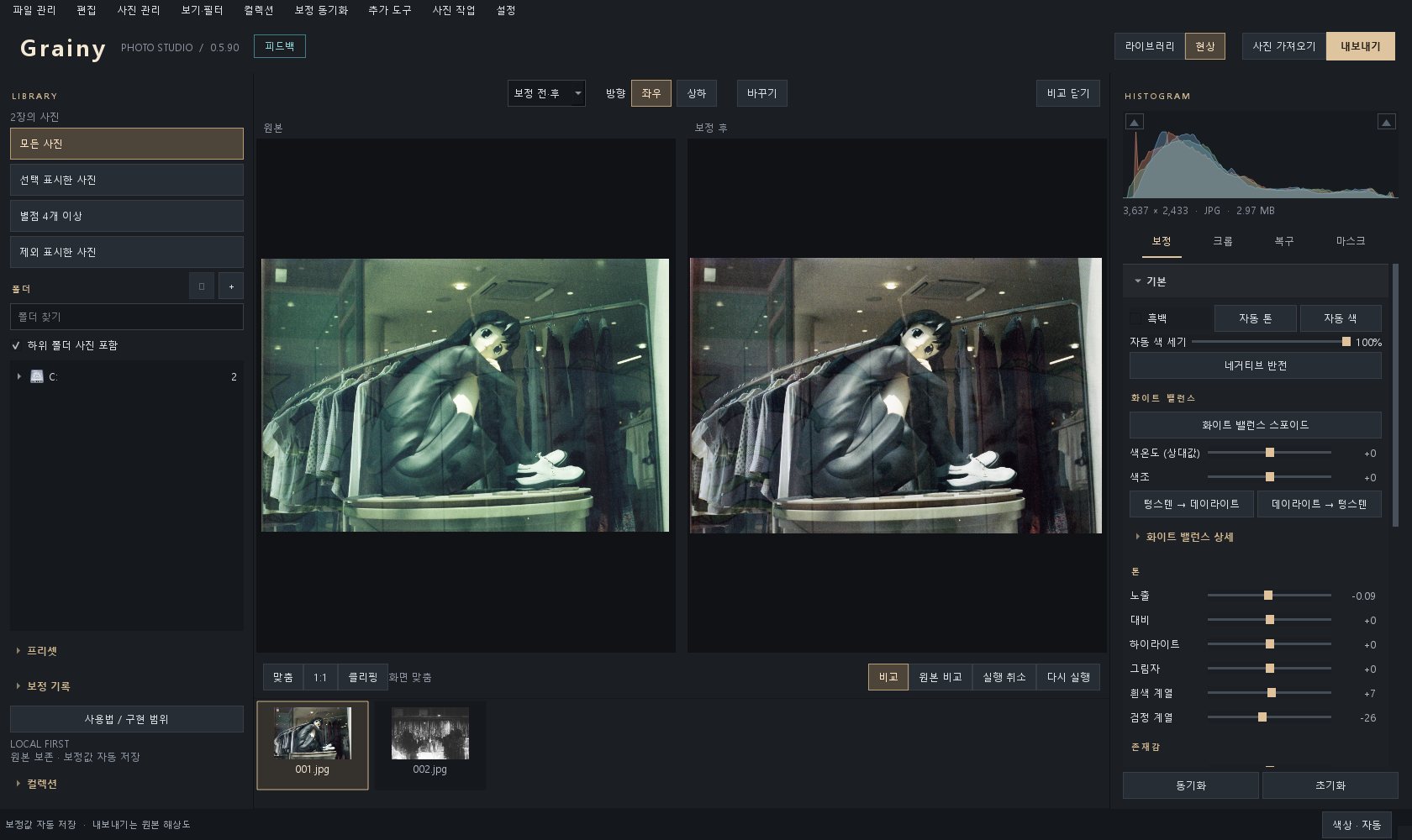
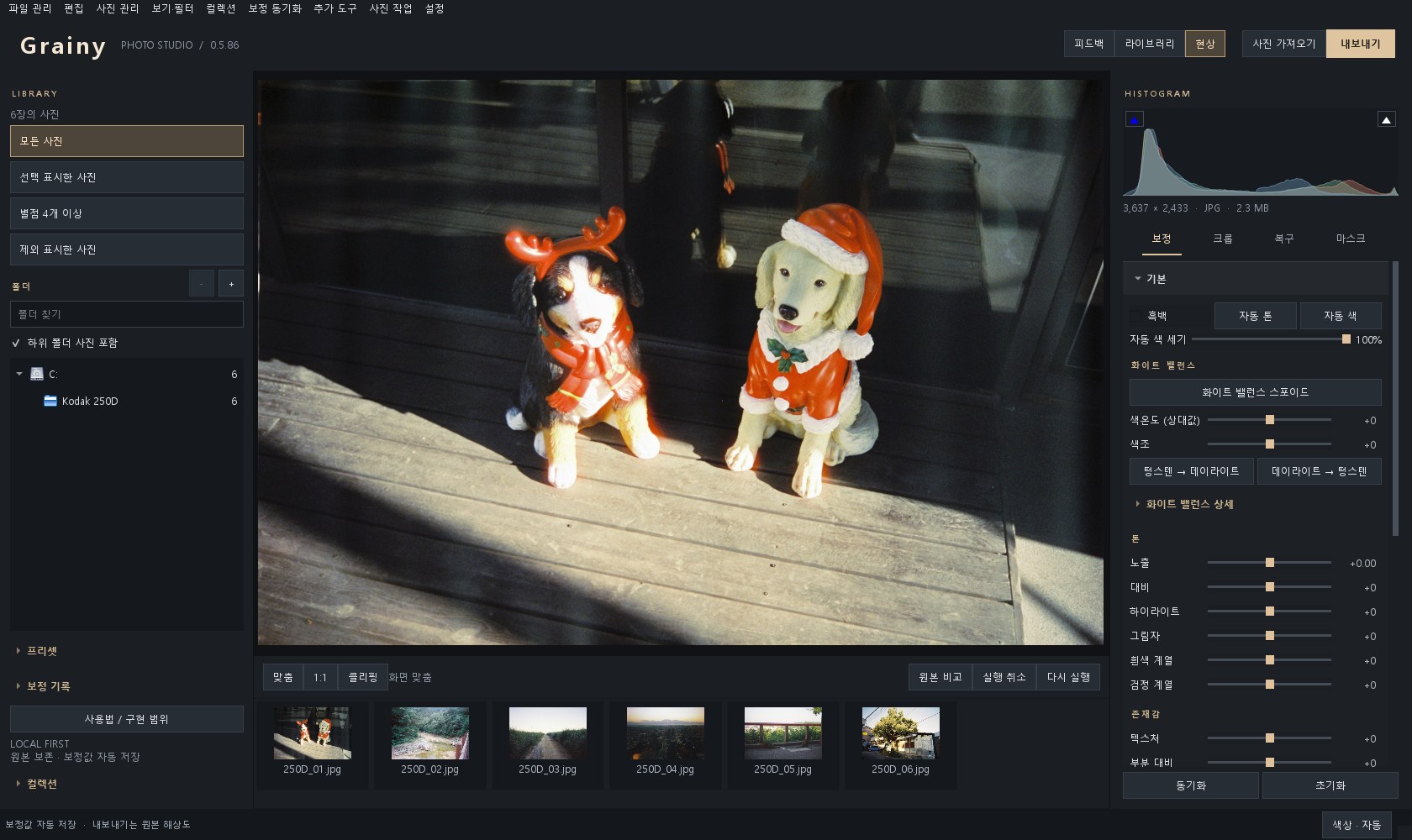
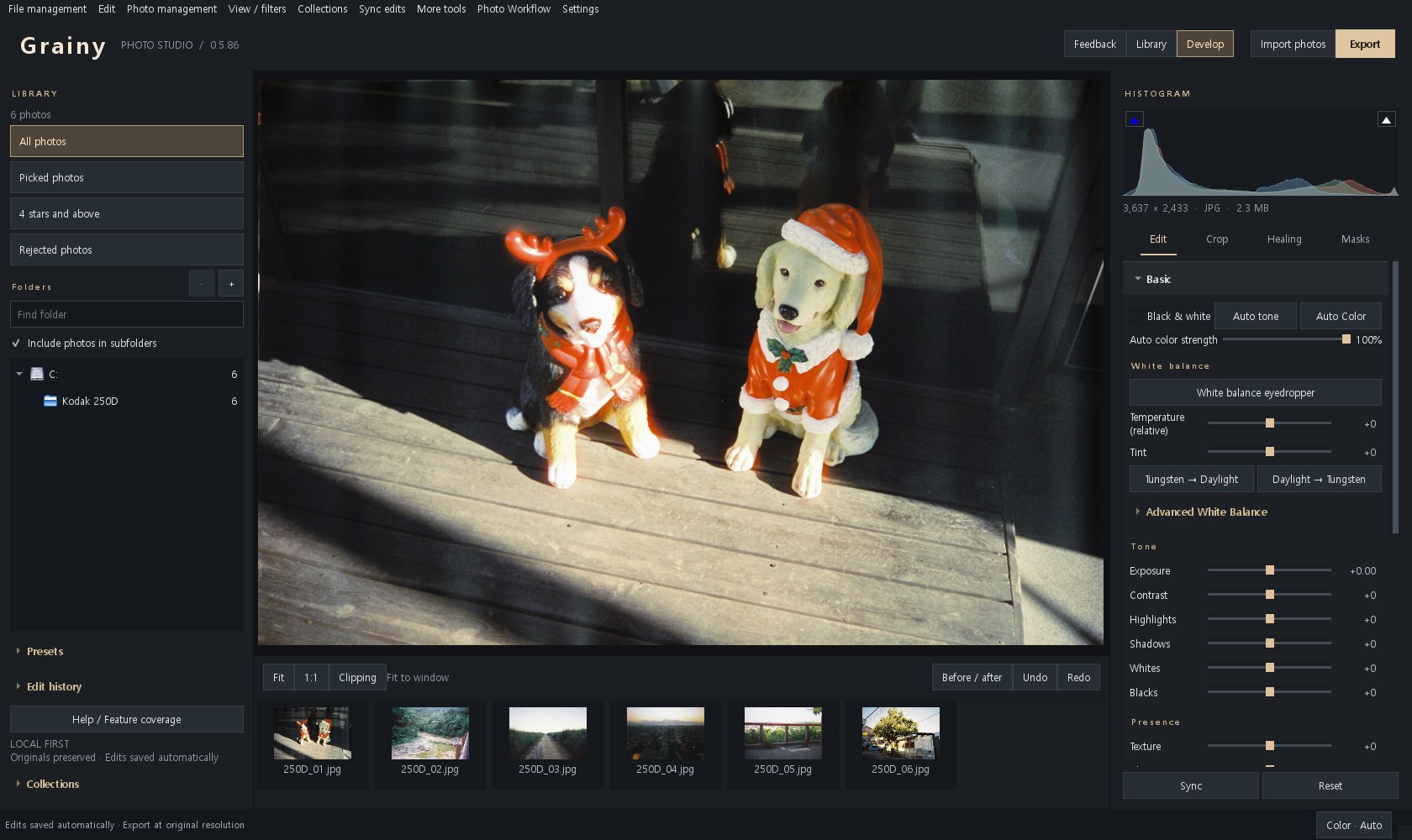
Grainy 현상 화면 Grainy develop view

필름 사진에 맞춘 도구Tools made for film

스캔한 필름을 사진으로 만드는 일부터 정리와 내보내기까지, 한 프로그램에서 끝납니다.From turning a scanned negative into a photo to sorting and exporting a whole roll, in one program.

네거티브 반전Negative conversion

스캔한 네거티브를 버튼 한 번으로 사진으로 바꿉니다. 필름 베이스의 주황색을 채널마다 빼고, 반전 직후의 밝기도 자동으로 맞춥니다.One button turns a scanned negative into a photo. The orange film base is taken out channel by channel, and a first brightness is set for you.

같은 설정으로 스캔한 한 롤은 한꺼번에 재서, 모든 컷을 같은 색 기준으로 맞출 수 있습니다. 카메라로 찍은 네거티브(RAW)도 됩니다.A roll scanned with the same settings can be measured as one, so every frame gets the same colours. Negatives photographed with a camera (RAW) work too.
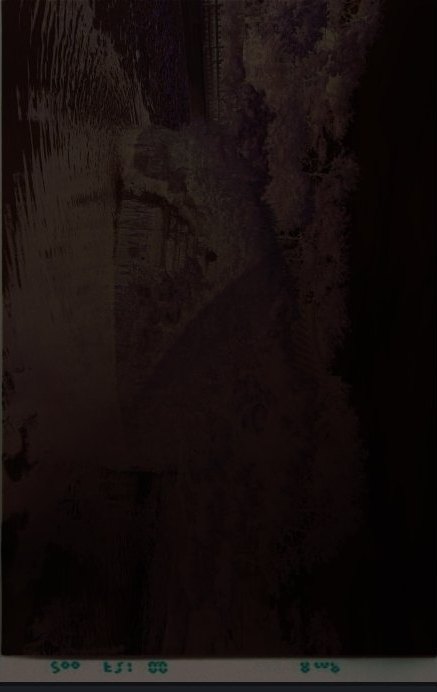
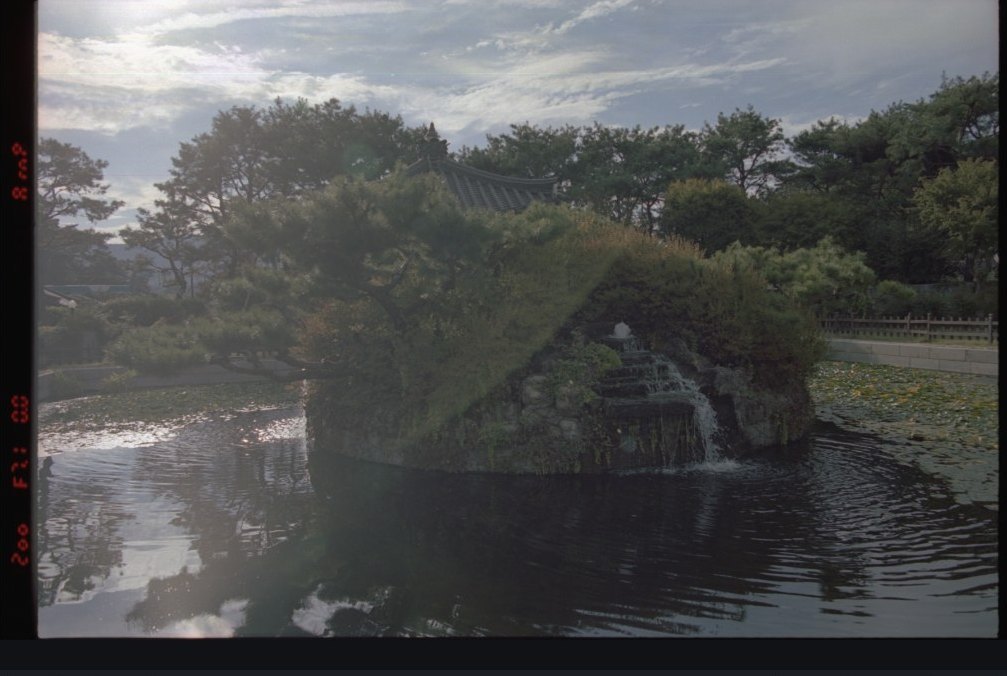
평판 스캐너로 스캔한 컬러 네거티브 → 반전과 자동 보정A colour negative from a flatbed scanner → converted and auto-corrected

자동 톤과 자동 색Auto tone and Auto colour

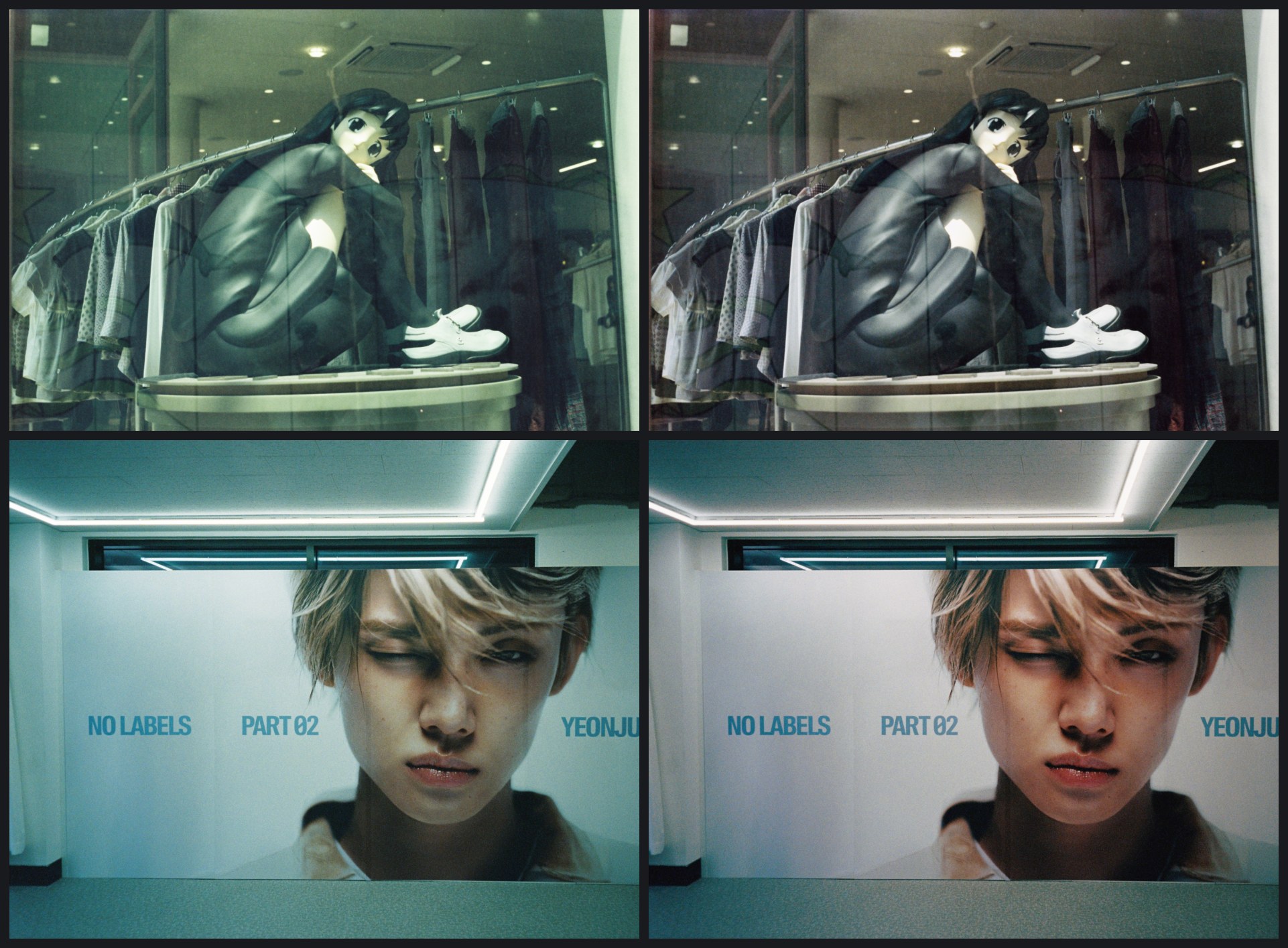
스캔마다 다른 노출과 색 틀어짐을 버튼 하나로 잡습니다. 어두운 곳·중간·밝은 곳의 색 틀어짐을 따로 재서 되돌리기 때문에, 필름 특유의 밝기에 따라 달라지는 색 틀어짐에도 맞습니다.One button each for exposure and for the colour cast of a scan. Shadows, midtones and highlights are measured separately, so the cast that changes with brightness — typical of film — is removed too.

왼쪽: 스캔 그대로 · 오른쪽: 자동 톤 + 자동 색Left: the scan as it is · right: Auto tone + Auto colour

나란히 비교하고, 확대해서 고르기Compare side by side, pick at full zoom

보정 전·후나 다른 사진을 한 창 안에서 좌우·상하로 나란히 봅니다. 한쪽을 확대하면 다른 쪽도 같은 자리를 따라갑니다.See before and after, or two photos, side by side or top and bottom in the same window. Zoom one and the other follows.

화이트 밸런스 스포이드는 포인터 주변을 크게 보여 주고, 그 자리의 RGB 값을 함께 알려 줍니다.The white balance eyedropper shows a magnified view around the pointer with the RGB values there.

필름 룩 82종82 film looks

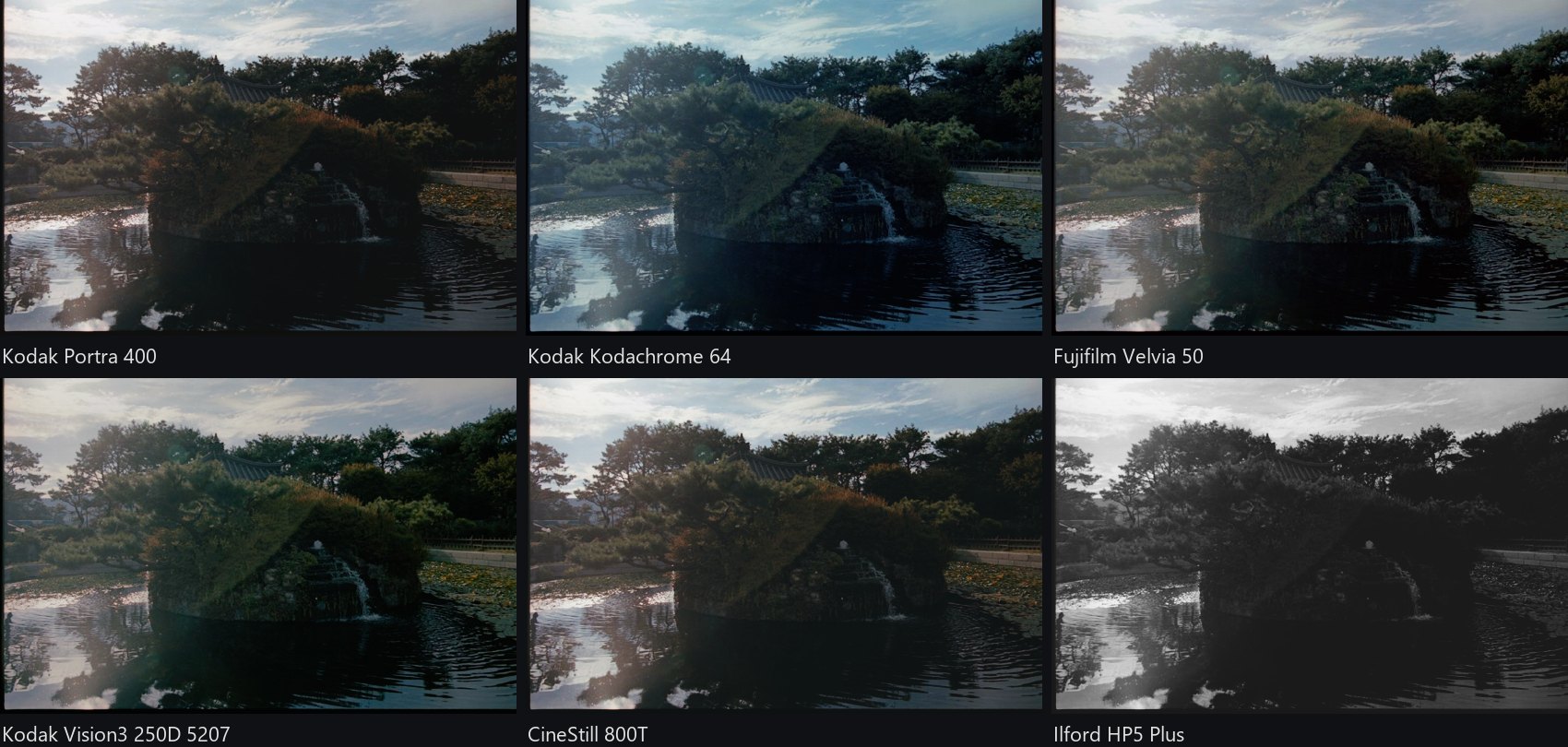
Kodak Portra·Kodachrome·Tri-X·Vision3, Fujifilm Velvia·Provia·Acros, Ilford HP5·Delta 등 82가지 필름을 고를 수 있습니다.Choose from 82 films: Kodak Portra, Kodachrome, Tri-X and Vision3, Fujifilm Velvia, Provia and Acros, Ilford HP5 and Delta, and more.

각 필름 제조사가 공개한 기술 자료의 분광 감도·특성 곡선·염료 농도로, 필름이 빛을 받아 현상되고 인화되는 과정을 계산합니다. 강도를 조절할 수 있고, 그 필름의 입자도 함께 들어갑니다.Each look is computed from its maker's published technical data — spectral sensitivity, characteristic curves and dye densities — as the film would be exposed, developed and printed. Set how much of it you want; the film's grain comes with it.

위 사진 한 장을 여섯 가지 필름으로The photo above through six films

먼지·흠집 감지Dust and scratches

스캔의 먼지와 흠집 후보를 자동으로 찾고, 확인한 것만 지웁니다. 여러 장을 한꺼번에 검사할 수도 있습니다.Finds dust and scratch candidates in a scan and removes only the ones you confirm, also across many photos at once.

마스크와 닷지·번Masks, dodge and burn

브러시, 선형·방사형 그레이디언트, 색상·광도 범위. 브러시는 어두운 곳·중간·밝은 곳만 고르도록 제한할 수 있습니다.Brush, linear and radial gradients, colour and luminance ranges. A brush can be limited to shadows, midtones or highlights.

스캔 테두리 자르기Scan border cropping

필름 가장자리와 홀더를 찾아 자동으로 잘라냅니다. 수평과 원근도 자동으로 맞춥니다.Finds the film edge and holder and crops them away; levels and straightens perspective automatically.

사진 보관함Photo library

모든 롤을 한 곳에서 폴더, 별점, 선택 표시, 색 라벨, 키워드, 컬렉션으로 정리합니다. 원본 파일은 절대 바꾸지 않습니다.Every roll in one place: folders, ratings, flags, colour labels, keywords and collections. Original files are never changed.

그레인과 비네팅Grain and vignette

양·크기·거칠기를 고르는 필름 그레인과 비네팅을 더합니다.Film grain with amount, size and roughness, and a vignette.

빠르고 가볍게Fast

그래픽카드를 써서 보정이 바로 보입니다. 설치 과정 없이 압축을 풀고 실행하면 됩니다.Edits show at once, using the graphics card. No installer: unzip and run.

AI에게 말로 보정 시키기Tell an AI to edit for you

Claude Code, Codex, Gemini CLI, Claude 데스크톱에 Grainy MCP를 한 번 등록하면, "이 롤 네거티브 반전하고 색 맞춰서 내보내줘"처럼 말로 일을 시킬 수 있습니다. AI는 Grainy의 기능을 직접 쓰고, 결과는 Grainy 화면에 바로 보이며, 한 번에 되돌릴 수 있습니다.Register Grainy's MCP once in Claude Code, Codex, Gemini CLI or Claude Desktop, then just ask: "convert this roll from negatives, fix the colours and export it". The AI uses Grainy's own tools, you see the result in Grainy at once, and each AI task can be undone.

Grainy를 실행합니다Open Grainy

따로 켤 설정은 없습니다. Grainy가 열려 있는 동안 AI 프로그램이 연결할 수 있습니다.Nothing to switch on: while Grainy is open, your AI program can connect to it.

AI 프로그램에 Grainy MCP를 등록합니다 (한 번만)Register Grainy's MCP in your AI program (once)

쓰는 프로그램과 운영체제를 고르고, 명령을 복사해 실행하세요.Pick your program and system, then copy and run the command.

말로 시킵니다Ask in plain words

"Negatives 폴더를 한 롤로 네거티브 반전하고 자동 색 맞춰줘""Convert the Negatives folder as one roll and run Auto colour"
"이 롤을 밀착 인화로 보고, 어두운 컷만 노출을 조금 올려줘""Look at this roll on a contact sheet and brighten only the dark frames a little"
"별점 4개 이상만 JPEG로 Instagram 폴더에 내보내줘""Export the four-star and better photos as JPEG to an Instagram folder"
"방금 한 작업 되돌려줘""Undo what you just did"
Grainy 자체는 이 기능으로 인터넷에 아무것도 보내지 않습니다. 연결은 이 컴퓨터 안에서만 열리고, 등록한 AI 프로그램만 쓸 수 있습니다. 그 AI 프로그램이 읽은 사진 목록·보정값·작은 미리보기는 그 AI 서비스로 전송됩니다. 원본 파일은 바뀌지 않고, AI가 한 보정은 되돌릴 수 있습니다. 쓰지 않으려면 Grainy의 설정 › AI 연결에서 끌 수 있습니다. Grainy itself sends nothing over the internet for this. The connection opens only inside this computer and only the AI programs you register can use it. What such a program reads — the photo list, edit values, small previews — is sent to that AI service. Originals are never changed and AI edits can be undone. Switch it off under Settings › AI Connection if you do not use it.

처음 실행할 때First start

Windows: "Windows의 PC 보호" 경고가 떠요Windows: "Windows protected your PC"

개인이 만든 무료 프로그램이라 유료 코드 서명이 없어서 뜨는 경고입니다. "추가 정보" → "실행"을 누르면 됩니다.Grainy has no paid code-signing certificate yet. Choose "More info" → "Run anyway".

macOS: "확인되지 않은 개발자"라며 열리지 않아요macOS: "unidentified developer"

시스템 설정 › 개인정보 보호 및 보안에서 "그래도 열기"를 한 번 누르면 됩니다. 사진 폴더나 외장 디스크 접근을 물으면 허용해 주세요.Open System Settings › Privacy & Security and click "Open Anyway" once. Allow access when macOS asks about your photo folders or external disks.

업데이트는 어떻게 하나요?How do I update?

새 버전이 나오면 Grainy 왼쪽 위에 알림 버튼이 뜹니다. 누르고 "지금 업데이트"를 고르면 사진과 보정 기록은 그대로 두고 새 버전으로 다시 열립니다.When a new version is out, a button appears at the top left of Grainy. Choose "Update now"; your photos and edit history stay as they are.

문제나 아이디어는 어디에 알리나요?Where do I report a problem or an idea?

Grainy 위쪽의 피드백 버튼을 눌러 주세요. 보내면 접수 번호가 나오고, 반영된 버전으로 업데이트하면 Grainy가 알려 줍니다. GitHub에서도 받습니다.Use the Feedback button at the top of Grainy. You get a reference number, and Grainy tells you after the update that addresses it. GitHub works too.